Documentation Index
Fetch the complete documentation index at: https://docs.clicks.tech/llms.txt
Use this file to discover all available pages before exploring further.
Download the Clicks app for iPhone
Install the free Clicks Keyboard app to customize settings like backlight, keyboard layout, key functions and more.
Clicks for iPhone: Basics
Adding & removing Clicks
Insert your iPhone at a shallow angle and push it securely onto the USB-C or Lightning connector. To remove press on the camera module and then slide iPhone out.
Holding Clicks
Rest your phone on your pinky and cradle the back with your middle fingers. This grip will support your phone and allow you to type comfortably.
Learn everything you need to know about Clicks for iPhone
Whether you want to make the most of your new keyboard or are considering Clicks, this video has you covered.Master Typing
Typing upper case letters
There are a few ways to type a capital letter:- Hold shift and tap a letter to get an upper case letter.
- Tap shift and then the next letter you press will be upper case
- Double tap shift and you will go into caps lock.
Accessing numbers & symbols
There are a few ways to type a number of symbol:- Hold ‘123’ key and tap a key to get the alternate character printed in the top right corner.
- Tap ‘123’ and then the next key you press will display an alternate character
- Double tap ‘123’ and you will enable number lock.
Text replacements
Setting up text replacements gives you a fast and easy way to quickly type out common phrases and even emoji. For instance, a text replacement could insert a 😊 whenever you type :)CarPlay & Connectivity
Using Clicks with Apple CarPlay
Clicks for iPhone 16 works with Apple Car play. To enable USB-C data mode, hold the ‘123’ key and press the space bar. Then connect your USB-C cable.Charging iPhone with using Clicks
Clicks supports passthrough charging via USB-C or lightning. Clicks for iPhone 16 also supported wireless charging with MagSafe.Keyboard Shortcuts
Native keyboard shortcuts to navigate iPhone
Use keyboard shortcuts to quickly navigate iPhone and iOS without needing to touch the screen.Launch apps & workflows with Clicks Mode
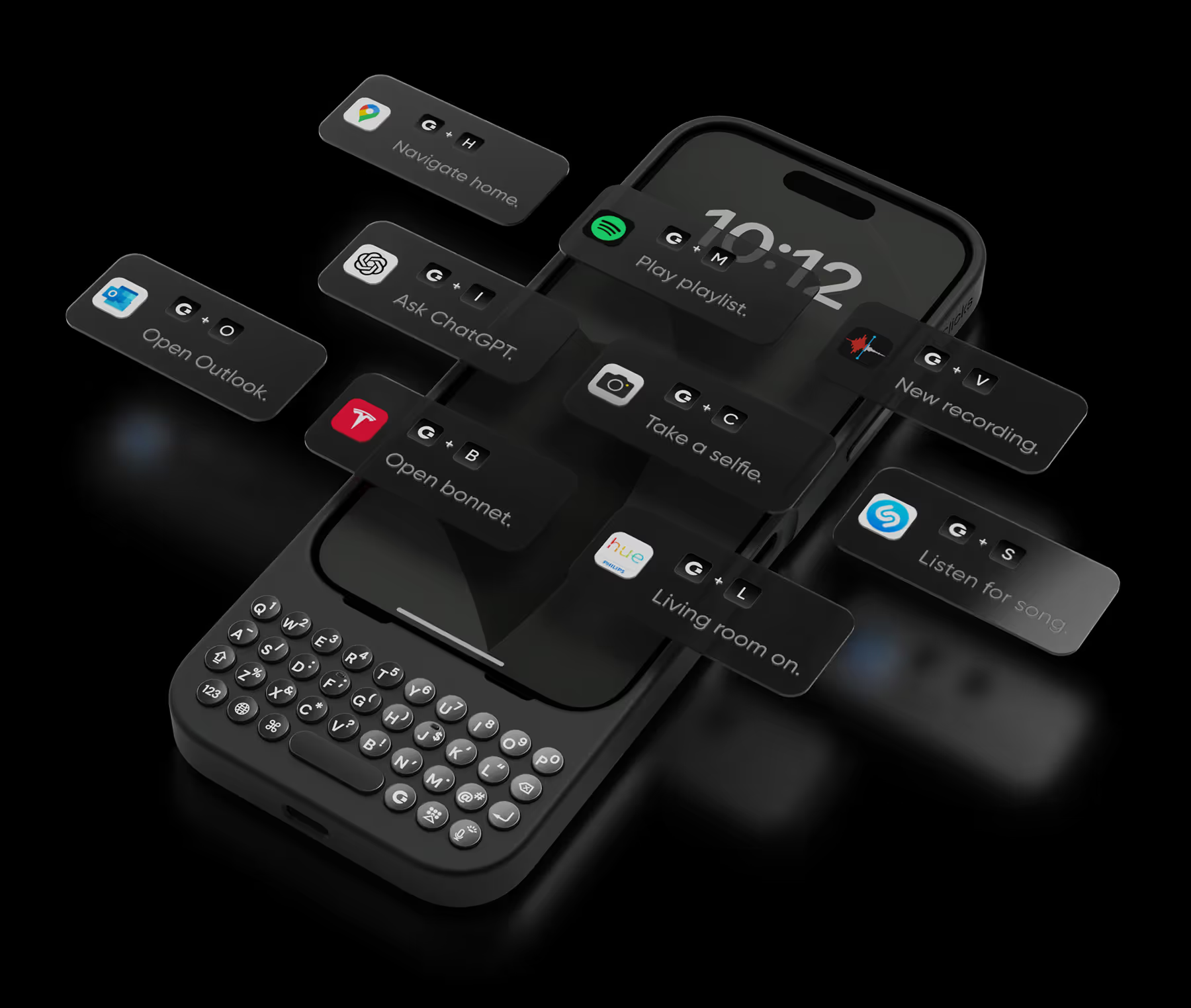
Set up powerful custom keyboard shortcuts to launch apps and trigger common tasks with Clicks Mode.Clicks App
Get to know the Clicks App
The free Clicks Keyboard app allows you to customize your keyboard settings and preferences. Adjust your backlight, configure key behaviour and discover new keyboard shortcuts. Plus, update your firmware to unlock new features.Customize your return key function
Some people expect the return key to act as a ‘send’ button while others want it to add a new line. Use the Clicks app to choose your preferred return key setup.Update your firmware
Unlock the latest Clicks Keyboard features by keeping your firmware up to date.Discover More Tips and Tricks
Browse Clicks and how-to videos on YouTube. Subscribe to our YouTube channel to stay up to date.Clicks how-to videos
Multiple Languages
Type in more than one language? Tap below to learn how to set up multiple languages, accents, symbols, and more.Guide to a Multilingual Clicks