

Documentation Index
Fetch the complete documentation index at: https://docs.clicks.tech/llms.txt
Use this file to discover all available pages before exploring further.
Getting Started
Congratulations on your new Clicks Power Keyboard. You’re about to unlock a whole new way to use your smartphone with a versatile, pocketable keyboard that works across your tech ecosystem.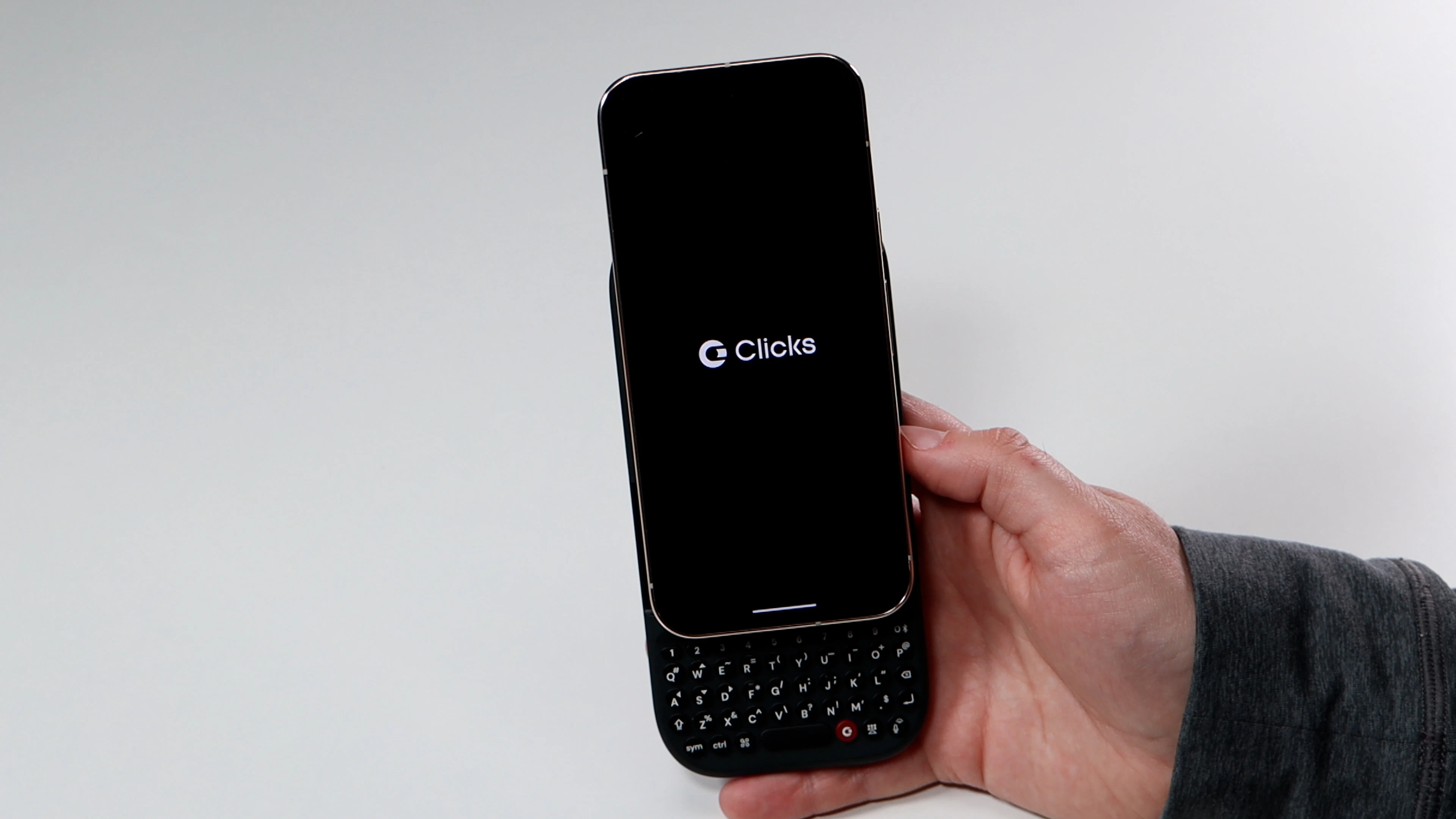
Physical Keyboard / Layout
Your Clicks Power Keyboard features a 47-key physical keyboard to create a tactile typing experience on your digital devices- Wireless Charging Power Keyboard features a built-in 2300 mAh power bank to charge your smartphone.
- The Number Row is more than a dedicated set of numerical keys, they also allow you to pair and switch between nine different devices and control media playback.
- Return Key double-space a line, confirm data entry, and app-specific controls.
- Voice Key activates voice to text in your messaging and writing apps. From your home screen use this to activate your digital assistant (Siri/Gemini).
- Show/Hide reveal or hide the digital keyboard.
- Clicks Key the key with the Clicks logo allows navigation between apps on the home screen, tab spacing in documents and setup keyboard shortcuts.
- Command press to return to Home screen on your device (iPhone) or press to return to reveal all apps (Android).
- Ctrl press in conjunction with other keys to control in app functions and shortcuts.
- Sym press to use alternate characters and navigation keys on Power Keyboard.
- Shift press shift to capitalize letters.
- The keyboard features backlighting to make it highly legible in any environment. Toggle the backlight on and off by holding down sym and pressing the microphone key. The backlit settings can be managed through the Clicks app.
Built-In Slider
The Clicks Power Keyboard features a built-in slider that can be adjusted to the ideal position for your phone and use case.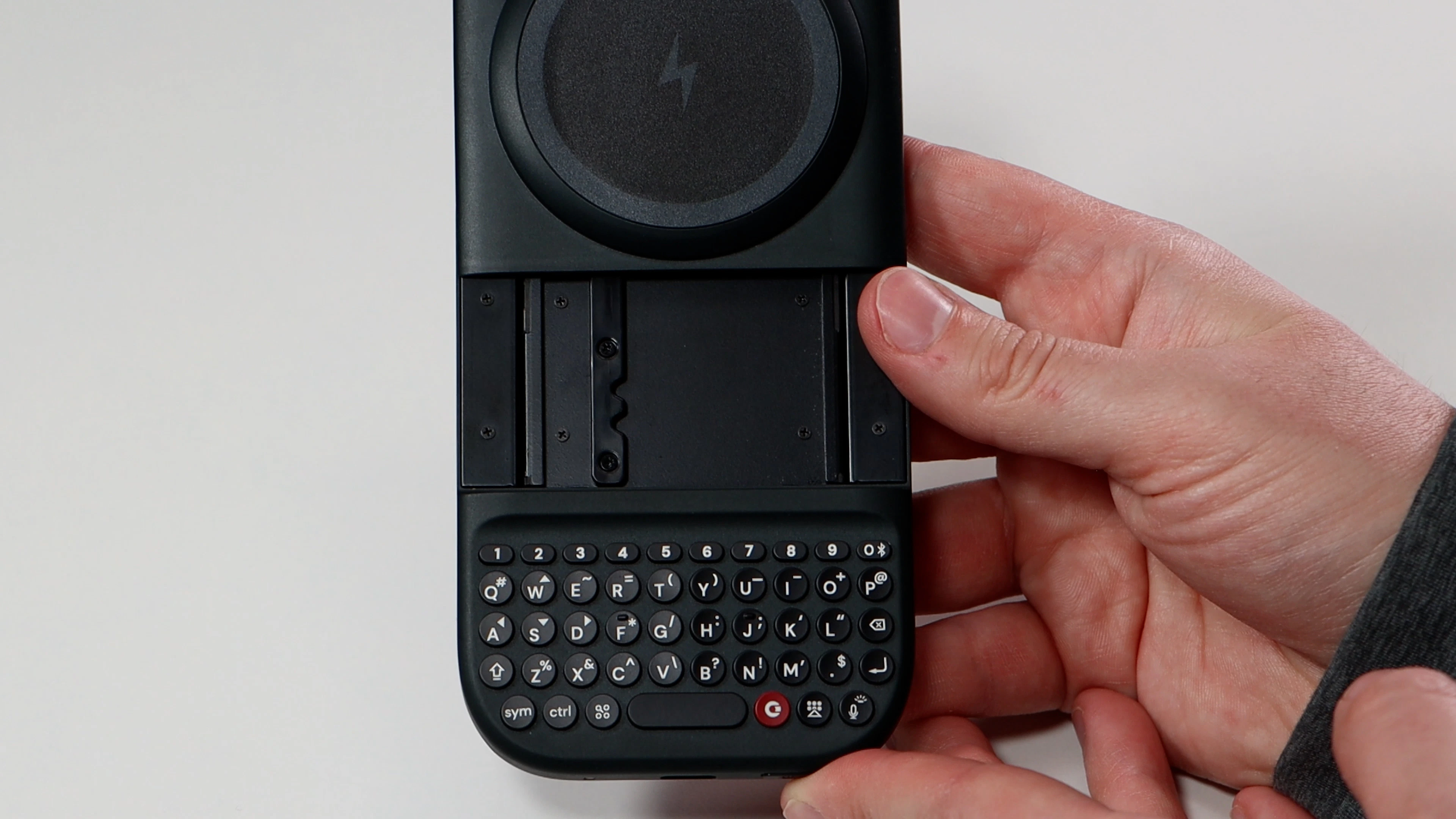
Default Position (Closed)
Your phone is magnetically attached to the keyboard, with the keys tucked away.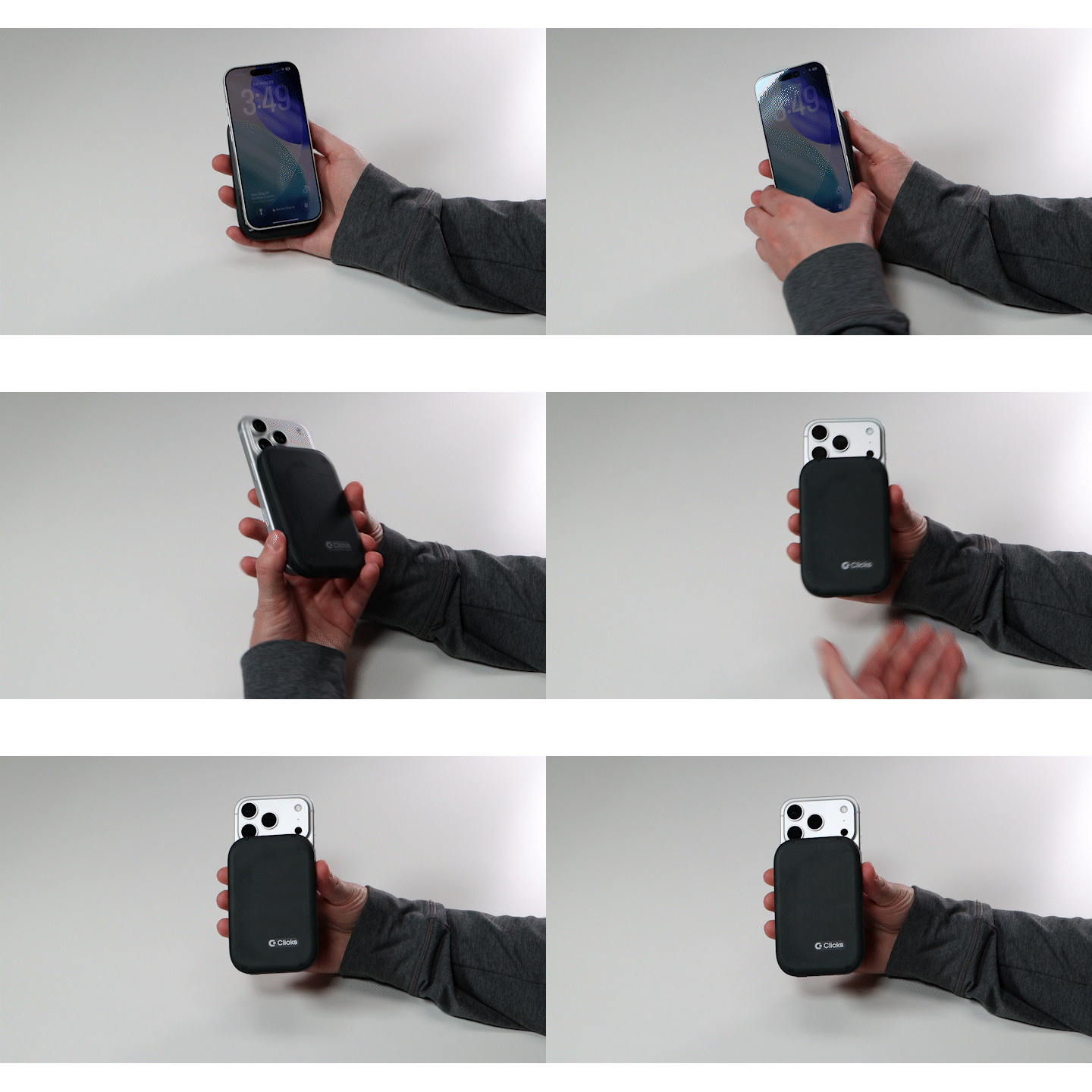
- Attaching your phone in landscape orientation
- Using the Power Keyboard in your hands with a smart TV, tablet, or other device
Position 1 (Landscape)
Your large-screen phone is attached to the Clicks Power Keyboard in landscape orientation for an optimized viewing experience.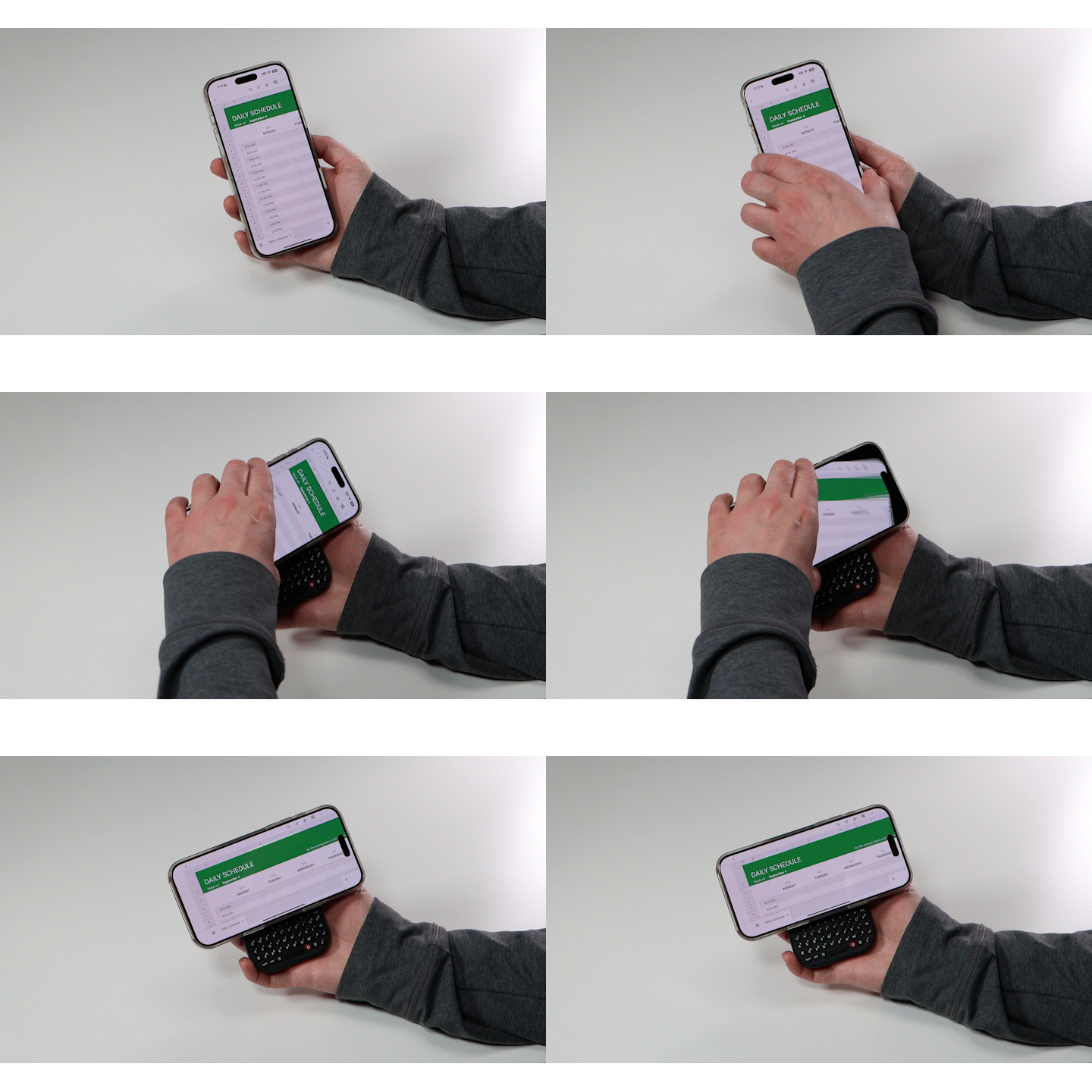
- Working in spreadsheets
- Typing in apps displayed side-by-side
Position 2 (Standard Size Phones)
Your phone is magnetically attached to the keyboard, with the keys accessible for typing.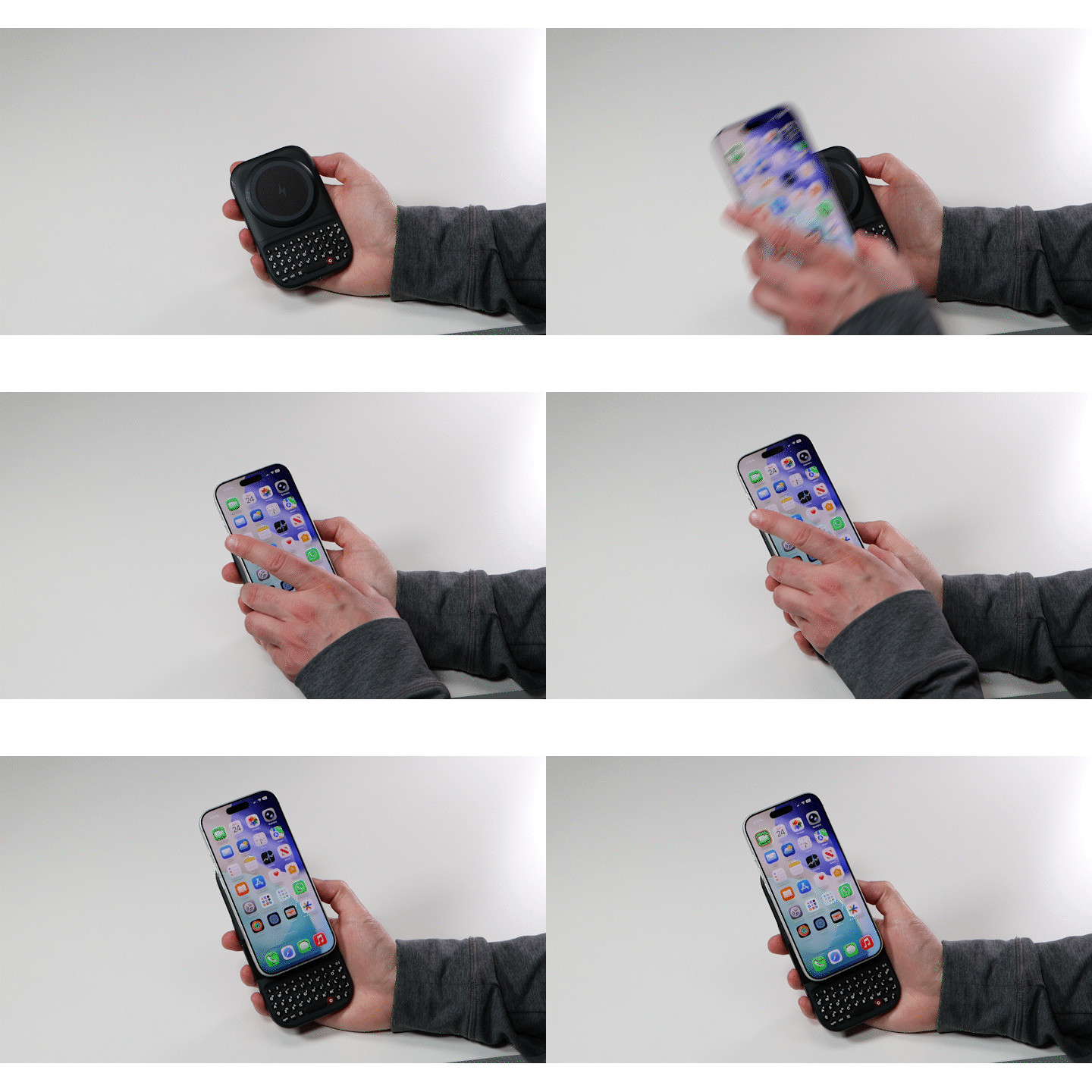
- iPhone, iPhone Air, Samsung Galaxy devices, Pixel 9/10, and other smartphones with standard-sized displays.
Position 3 (Large Screen Smartphones)
Your large-screen phone is magnetically attached to the keyboard, with the keys accessible for typing.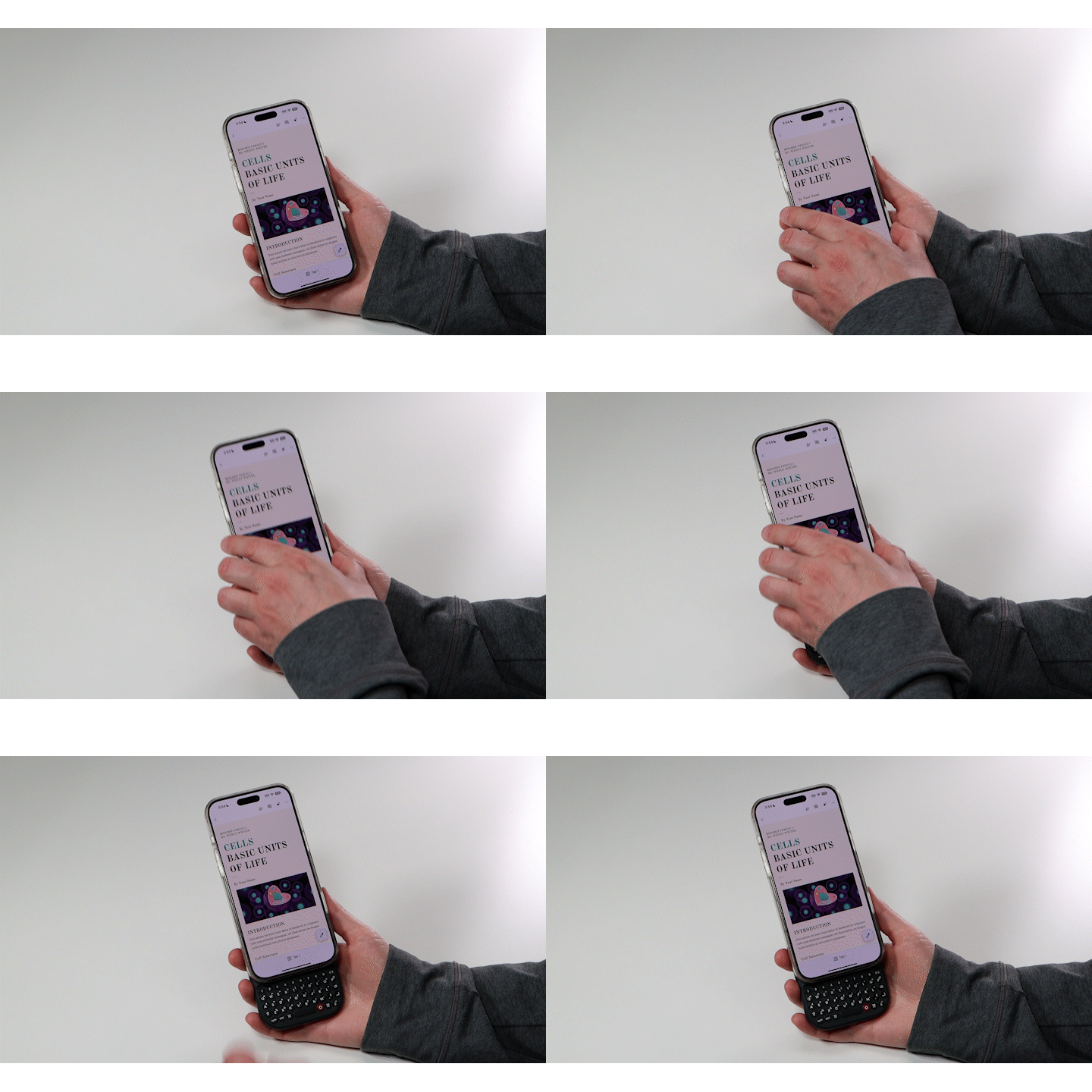
- iPhone Pro Max models, iPhone Plus models, Galaxy Ultra devices, Pixel XL, and other large screen phone
Power Key
Hold the Power Key for 3 seconds to turn Power Keyboard on and off. The Power key can also be used when pairing or switching devices without using the Clicks app. Hold down the Power key while pressing a number key (1-9) to pair a device to a specific number key.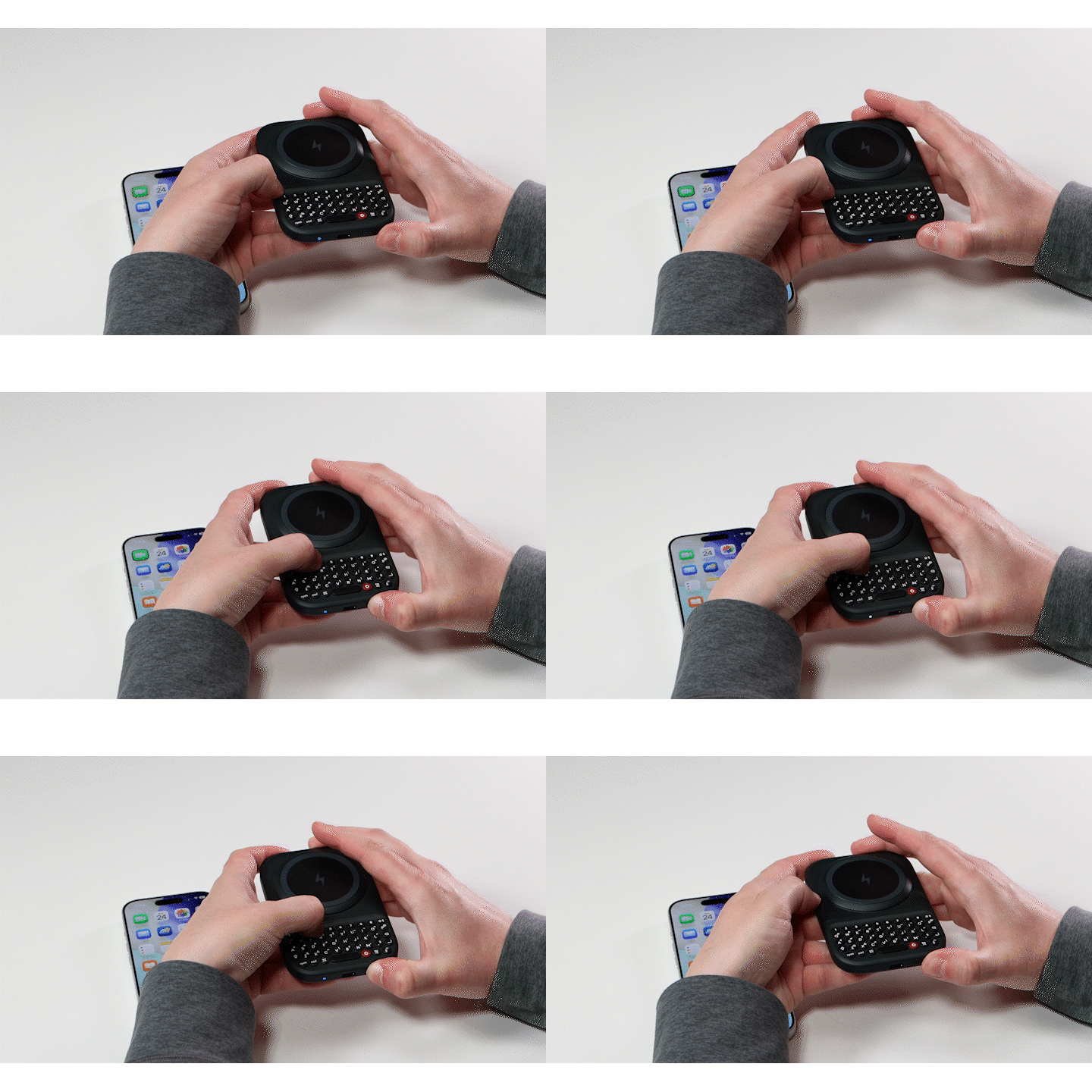
LED Light
An LED indicator is located on the bottom of the device next to the USB-C port. The LED color indicates the current status of the device.| LED Status | Description |
|---|---|
| Blue | Connected |
| Blue (Pulsing) | Pairing mode |
| Yellow | Battery low. Reserve power only; wireless charging unavailable |
| Red | Low battery. Charge as soon as possible |
| Green (Pulsing) | Charging |
| Green (Solid) | Fully charged |
USB-C Port
Clicks Power Keyboard uses a USB-C port for charging.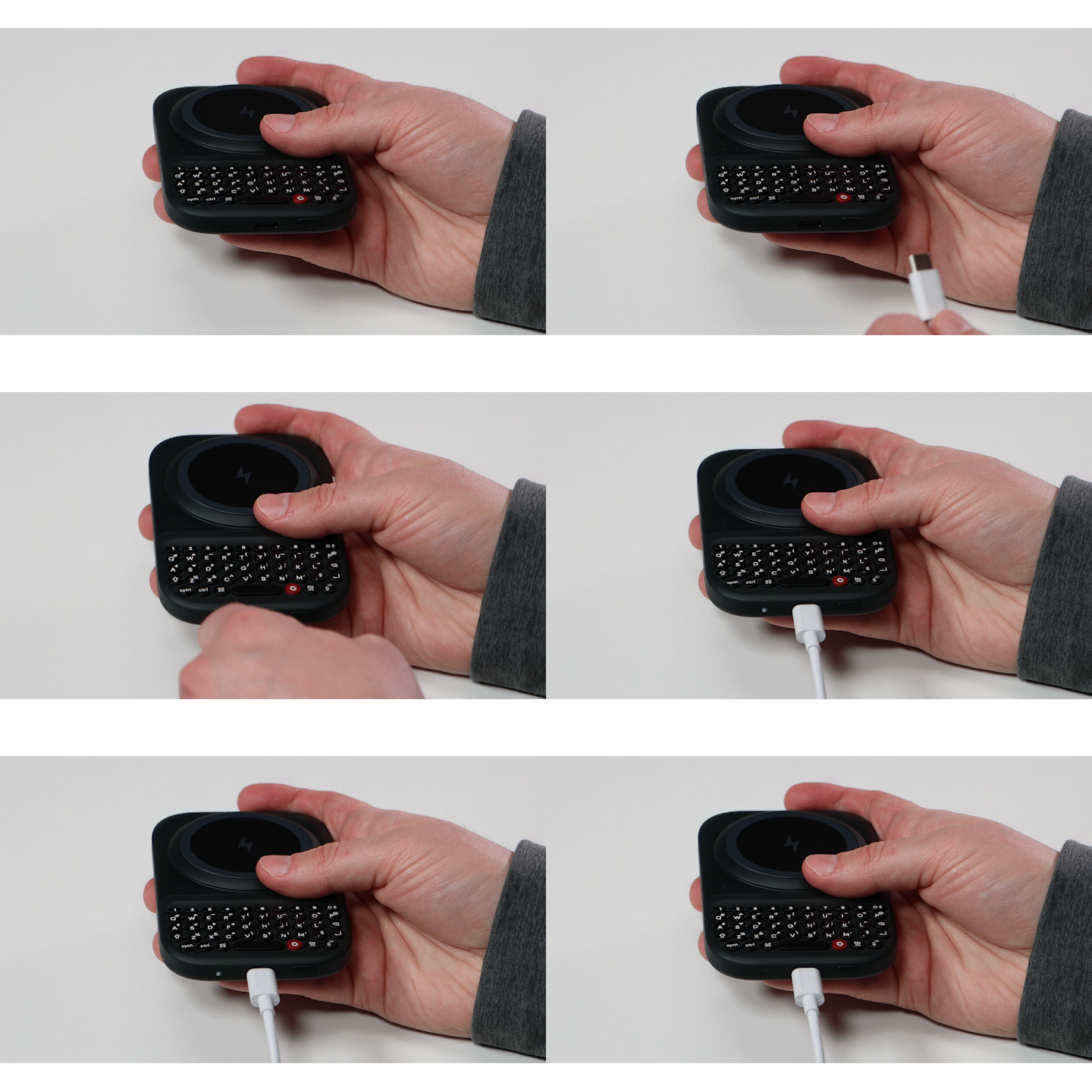
Wireless Charging
Clicks Power Keyboard supports 5W Qi wireless charging for smartphones.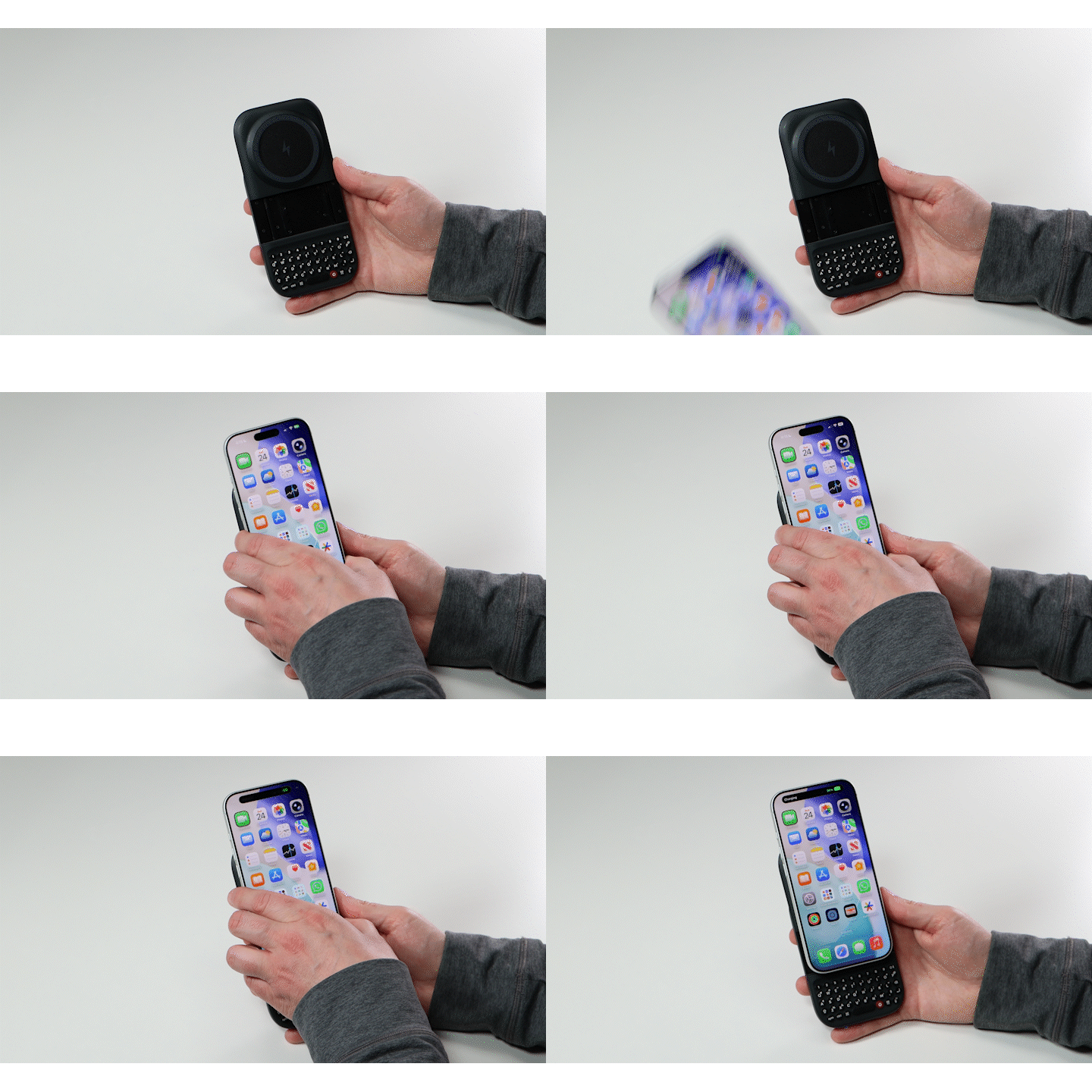
- Through the Clicks App
- Using the keyboard shortcut: Hold
Sym+ press the Clicks key to toggle wireless charging on or off