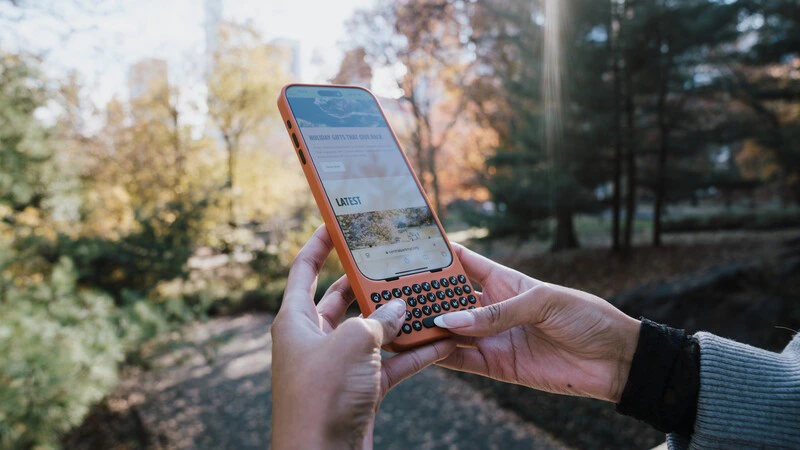
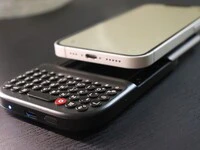
If you aren’t already using Clicks Mode with Apple shortcuts to take action, you’re missing out on a huge part of the value of Clicks.This is a big one because it allows you to perform the actions you take most frequently by just pushing a button on your Clicks Keyboard.For example: * Open Instagram with Clicks + I * Start recording a voice note with Clicks + V * Identify a track using Shazem with Clicks + S * Get directions to the next location on your calendar with Clicks + DThese are only a couple samples of the kinds of powerful shortcuts you map to your keyboard. In truth, the possibilities are endless!We’ve got a library of our favorite shortcuts you can install with a click to help you get started and a step-by-step video walking through how to set up Clicks Mode.
3. Command your Clicks Keyboard with Apple Shortcuts
The Clicks app offers a number of valuable features to help customize and personalize your keyboard to your typing preferences.A number of those settings can be configured without ever having to open the Clicks app itself! That’s because they can be controlled through an Apple Shortcut.Setting up these Clicks controls as Apple Shortcuts allows you to add them to your home screen as a widget, or control them using Siri.Open the Shortcuts app and Click the ’+’ in the top right corner. Tap the ‘Search Actions’ bar, and type in ‘Clicks’ Choose one of the available shortcuts to add it to your Shortcuts library Tap the three dots in corner of that shortcut dial Tap the down arrow next to the shortcut name Choose ‘Add to Home Screen’
4. Use Clicks with more of your tech with USB-C data passthrough
Clicks for iPhone 16 adds USBC-data passthrough making it easy to use your phone with CarPlay or your laptop, without needing to remove it from Clicks.It couldn’t be easier!Press and hold the 123 key and tap the spacebar. This enables data mode on your Clicks keyboard.You can now plug in your USB-C cable to connect to CarPlay or your computer. While connected to that device, data will pass through and so keyboard functionality will be paused.To resume using your keyboard, just unplug your USB-C cable from Clicks.Here’s a short video to show you how:
5. Unlock the ultimate mobile workflow with keyboard shortcuts
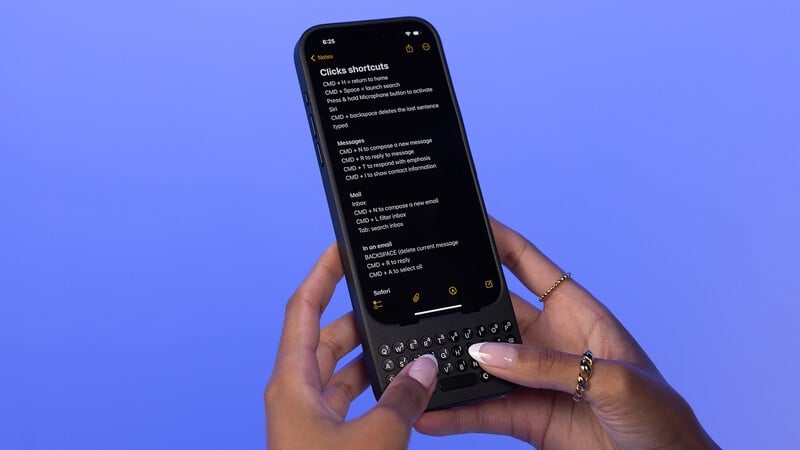
iOS is full of hidden keyboard shortcuts that make it easy to navigate your phone and apps with fewer swipes and taps. They’re already there and waiting for you to discover them. Here are a few of our favorites:
Show and hide the notifications window with Globe + N
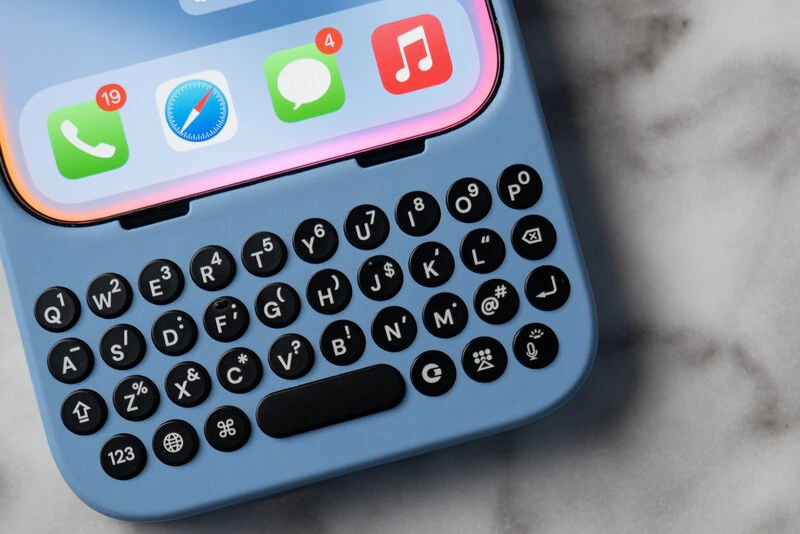
You may already know that tapping the microphone button initiates voice dictation. This is a handy feature when you don’t have both thumbs available to type on Clicks, like carrying in the groceries or rolling your luggage through an airport.But did you know that the fastest way to launch Siri is also right under your thumb. Pushing and holding the microphone key in the bottom right hand corner of Clicks launches Siri. It’s that simple!
A real keyboard gives you unparalleled control over your words allowing you to say exactly what you mean to say, precisely how you mean to say it. But, sometimes the autocomplete suggestions offered up by iOS are on point and offer a way to craft your message even faster.When you see a word completion or suggested next work you want to work into your message, just press the space bar and it will be accepted. Otherwise, just keep typing to overwrite it.Once you get into this flow of accepting word suggestions alongside your own prose, you’ll ascend to a next level of speed and expression.
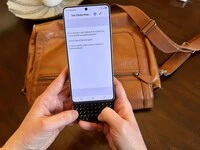
Does the Clicks Power Keyboard Work with Samsung Galaxy Phones?
At Clicks, we believe your technology should work for you, not against you. Since the beginning, we’ve been dedicated to helping people reclaim their screen real estate and rediscover the precision that only a physical keyboard can provide. With the launch of the Clicks Power Keyboard, we’re bringing that high-performance tactile experience to a massive new world of devices…
Samsung's Phones Don't Have Magnets But You Can Still Use Power Keys
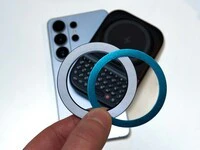
The Clicks Power Keyboard relies on a high-strength magnetic connection to “snap” onto the back of your smartphone. While this is a native feature for some devices, Samsung Galaxy phones just refuse to adopt this feature. Having a built-in magnetic ring in the chassis is standard with many other phones, but not galaxy devices. At least not as of 2026. Having no magnetic ring on…
The iPhone 17e Users' Guide to Clicks Power Keyboard
The iPhone 17e is a capable and lower-cost iPhone. Since you’re saving some cash on the hardware, it’s a little easier to spend your money on accessories to improve the phone experience. In this article, we’ll show you how to get up and running with the Clicks Power Keyboard on iPhone 17e.
Is There A Clicks Keyboard for iPhone 17e
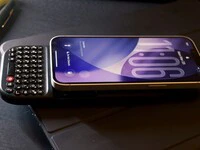
Yes, you can easily add a physical keyboard to your iPhone 17e by pairing it with the Clicks Power Keyboard.