

Documentation Index
Fetch the complete documentation index at: https://docs.clicks.tech/llms.txt
Use this file to discover all available pages before exploring further.

What you’ll learn in this article:
- What it’s like to use Clicks in your first hour, day, week and two-weeks
- Strategies to improve your typing speed, accuracy and confidence
- How to get the full value out of Clicks – beyond just typing!
Hour one
It’s natural for typing to feel a bit foreign in the first hour using Clicks. Do these things to get familiar with your new keyboard.Get the Clicks Keyboard app for iPhone
Visit Apple App Store and download the Clicks Keyboard app. This free app will ensure your Clicks Keyboard has the latest software and gives you control of different preferences.Find your balance
Remember the first time you rode a bike (without training wheels)? It takes a second to find your balance and then you’re unstoppable. You’ll want to take a few minutes to find the grip that feels most comfortable for you. Most Clicks customers love cradling their phone so that it rests on their pinky finger(s), and is supported by their ring and middle finger. This ensures the balance is just right for typing (and swiping).Master the basics
Begin by learning a few simple concepts key to understanding how Clicks works as an external keyboard.| Function | How to do it |
|---|---|
| Capital letters | Press and hold the shift (up arrow) key to type upper-case letters |
| Alt characters | Press and hold the 123 key to type numbers and symbols printed on the top right corner of the key |
| More symbols | Access symbols not printed on the keyboard by pressing the show/hide keyboard button (next to microphone key) to pull up the symbol tray on screen |
| Show/hide keyboard | The key in the bottom right (next to the microphone key) calls up the virtual keyboard in any text field. |
| Keyboard backlight | Hold the 123 key and tap the globe key to toggle between the backlight off/auto modes |
| Speech to text | Tap the microphone button in any text field to enable speech to text. Tap again to stop |
| Siri | Press and hold the microphone button to call up Siri. Press again to end Siri |
Set up your preferences
Everyone types differently. Use the Clicks Keyboard app to tailor Clicks to your preferences.| Function | How to do it |
|---|---|
| Soft Return | When enabled, pressing the return key will add a line (carriage return). If disabled, return will function as a ‘send’ key |
| Backlight | Customize how long the keyboard backlight remains lit before dimming |
| Caps/symbol lock | Turn these on to enable caps lock or symbol lock by double clicking the shift (up arrow) or 123 key. Press the key once more to return to normal |
Day one
On your first day with Clicks it’s not uncommon to feel like you’re typing a little slower than normal as your thumbs get accustomed to real buttons. With practice this phase passes quickly.Practice typing
Use a free typing tutorial like MonkeyType to get more time on the keys. Putting in just a couple of short, 5-minute sessions each day will unlock speed and accuracy quickly. Monitor your progress by tracking your words per minute and percentage accuracy after each session.Go hybrid
If you’ve got something important to write and aren’t yet fully confident in your tactile typing, don’t remove Clicks from your phone. Instead, pull up the on-screen keyboard with the show/hide keyboard button (next to the microphone).Discover shortcuts
Clicks unlocks a ton of new keyboard shortcuts that help you navigate apps and tasks. Try out a few simple one’s to see what’s possible and start to build them into your muscle memory.| Hold | Press | In order to… |
|---|---|---|
| CMD | H | Jump back to the home screen |
| CMD | Spacebar | Open Spotlight search |
| 🌐 | C | Open Control Center |
| 🌐 | N | Show notifications |
Week one
In your first week, you will start to feel more comfortable and confident typing on physical keys. Don’t be surprised if you find yourself being able to touch type without having to look at the keyboard!Keep practicing
Continue to use a typing tutorial like MonkeyType to increase your speed and accuracy. Look back and compare your scores to your first typing tests on Day 1 and see how far you’ve come. Speeds of 70+ words per minute (at 100% accuracy) are not out of reach!Explore different apps
A key benefit of Clicks is the added screen real-estate you get by moving the virtual keyboard off screen. This is especially helpful in apps like:| App | Benefit |
|---|---|
| Messages | See more of your conversation to get the whole context of the chat |
| Notes | More space for to-do lists, brainstorming ideas, capturing lecture notes |
| Caption your story posts without the keyboard getting in the way of your content. Chat with viewers during a live stream while keeping your video full-screen | |
| Journal | See more of your journal entries, including photos, so you can translate your ideas into words |
| Safari | Completing online order details or forms without the fields being blocked by the on-screen keyboard |
Week two
Now that you’ve mastered the basics of tactile typing and navigating with keyboard shortcuts, you’re ready to begin unlocking Clicks as a remote control for apps and actions you rely on throughout your day.Build Apple Shortcuts
The Shortcuts app in iOS makes it easy to automate tasks. Shortcuts is a powerful app that can handle a range of tasks from simple, like opening an app, to sophisticated like emailing everyone on your need calendar appointment and sending your ETA. Find a number of ready-made shortcuts in the Shortcuts app, or browse some of our favorites below, and install them yourself with a tap on the link.Configure Clicks Mode
After building shortcuts for your common tasks, you can initiate them at the push of a button on your Clicks Keyboard. Visit this article for detailed instructions on how to configure Clicks Mode to launch Apple Shortcuts.Sample Shortcuts
| Name | Description | Link |
|---|---|---|
| New voice note | Initiates a new voice note recording | Install |
| New note | Creates a new note in the Notes app | Install |
| Enable focus | Move in and out of focus mode | Install |
| Running late | Email all the attendees on your next calendar invite with a message saying your running late that includes your ETA based on travel time from your current location | Install |
| On my way home! | Send a text to a contact letting them know you’re on-route to your home address, including your ETA based on driving time and traffic conditions | Install |
| Shazam song | Launch Shazam and start listening for the current song artist and title | Install |
Join the Clickster Community
Looking for more tips, tricks or help as you get up to speed with Clicks? Join our Clickster Community on Discord!Read more
Clicks is a command center for your Android smartphone
The Clicks Keyboard for Android is here. Learn how to use keyboard shortcuts to launch apps and navigate your Android phone.

Turn Clicks Into a Remote Control For Your Life
The 36 buttons on your Clicks Keyboard can be used for so much more than just typing. By enabling Clicks Mode to work with iOS Shortcuts, you can use the buttons on your Clicks Keyboard to quickly launch apps, trigger workflows or take actions you perform frequently
5 Ways to Tailor Clicks to Your Preferences
Everyone types a little differently. That’s why your Clicks Keyboard gives you ways to tailor your typing experience to your personal preferences.
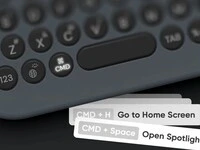
Navigate your iPhone with Keyboard Shortcuts
With Clicks you will find that many of the keyboard shortcuts you use on your Mac or iPad Magic Keyboard work on your iPhone.