

Documentation Index
Fetch the complete documentation index at: https://docs.clicks.tech/llms.txt
Use this file to discover all available pages before exploring further.

What you’ll learn in this article:
- How to turn the keys on your Clicks Keyboard into Action buttons
- What is ‘Clicks Mode’ and how to use it to trigger Shortcuts
- Discover powerful Shortcuts that can be mapped to Action buttons
What is ‘Clicks Mode’?
Clicks Mode refers to a specific way to configure your iPhone iOS accessibility and keyboard settings to allow your Clicks Keyboard to take actions beyond simply typing.How does ‘Clicks Mode’ work?
When Clicks Mode is enabled, pressing the Clicks Key (next to the space bar) will cause iOS to listen for a command upon your next keypress. That keypress can be mapped to launch a Shortcut you have built in the iOS Shortcuts app.How do I enable ‘Clicks Mode’?
Enabling Clicks Mode requires completing a few different steps:Configuring Clicks Mode
Step 1. Enable full keyboard access.
These settings provide a visual confirmation when you engage Clicks Mode. When an Action has been invoked, you will see a glowing ring around the outside of your screen for 1 second.Step 2. Clear default keyboard commands
Clear each of the pre-existing keyboard commands
- Look for commands that have a shortcut programmed. You will see a key indicated on the far right hand side of the screen in line with the command
- Tap on the command
- Select clear
- This will clear the default keyboard command
Step 3. Create your custom shortcuts
Now you will use the Shortcuts app on iOS to create the shortcuts that you will map to your Clicks Keyboard as Action buttons.If you aren’t familiar with Shortcuts, it’s a powerful app with lots of functionality! This guide from Apple can help you understand the many possibilities of Shortcuts.
| Shortcut | What it does | Get it |
|---|---|---|
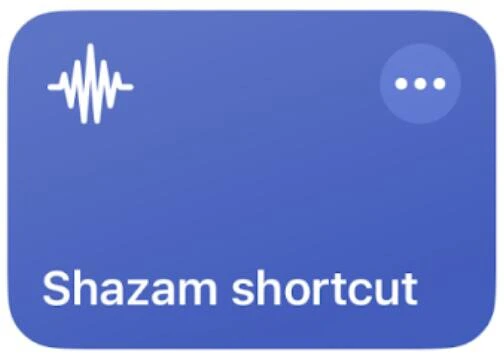 | Starts listening for a song and returns the details | Install it |
 | Toggles in and out of focus mode | Install it |
 | Begins recording a voice note | Install it |
 | Launches the Instagram app | Install it |
 | Sends a text message to a predetermined contact with a canned message and ETA based on driving time to a destination | Install it |
Step 4. Map Your Shortcuts as Clicks Mode Action buttons
In this final step you will configure your Clicks Keyboard to launch Shortcuts using Clicks Mode.Go to Settings > Accessibility > Keyboards > Full Keyboard Access > Commands
- Scroll to the bottom of the page under the ‘SHORTCUTS’ heading
- You will find all the Shortcuts you created in step 3
Map a Shortcut to an Action button
- Tap on the name of the shortcut you want to program
- Enter the shortcut you want to use to invoke that shortcut
- Press the Clicks key (next to the space bar)
- Followed by the key you want to use to activate the shortcut
- Press done
Step 5. Using the Clicks Key to trigger Action buttons
Now that you have mapped Shortcuts to your Clicks Keyboard, you can start using your new Action buttons. To launch an action:
For example, if you have mapped the shortcut to open the Instagram app to the Action button ‘Clicks Key + I’, you would trigger this by: Hold Clicks Key > Press ‘I’ twice.
Clicks Mode from Lock Screen!
Clicks Mode shortcuts are super powerful. Not only do they work from anywhere within iOS while you are using your iPhone, but they even work from a locked iPhone screen. If you pick up your iPhone and go straight to a Clicks Mode shortcut, your iPhone will unlock with FaceID and immediately take that action. You can dial contacts, open apps, or activate any shortcut you want immediately without ever having to tap on your touchscreen. It’s incredible!Read more
Clicks is a command center for your Android smartphone
The Clicks Keyboard for Android is here. Learn how to use keyboard shortcuts to launch apps and navigate your Android phone.

Mastering Clicks: What to Expect In Your First Two Weeks
With just a bit of practice your thumbs will feel right at home, typing with confidence and unlocking new iPhone features only available with a keyboard.
5 Ways to Tailor Clicks to Your Preferences
Everyone types a little differently. That’s why your Clicks Keyboard gives you ways to tailor your typing experience to your personal preferences.

Navigate your iPhone with Keyboard Shortcuts
With Clicks you will find that many of the keyboard shortcuts you use on your Mac or iPad Magic Keyboard work on your iPhone.